AOL: Email News Weather
- 4.1
- Rating
- 10.00M
- Installs
- Free
- Price

 Analysis by App-foxy
I approached AOL: Email News Weather as a practical everyday tool rather than as a full replacement for every app on my phone. Its appeal is straightforward: email, news, and weather are brought together in one place, so I can check the essentials without jumping between several separate services. After spending time with it, I found that its biggest strength is convenience, while its biggest weakness is that this convenience also means accepting a more combined, less specialized experience.
The app is free to download and belongs to the productivity category. It comes from AOL Media LLC, carries an Everyone 10+ content rating, and has been available since July 2010. Its long presence and broad adoption are reflected in a 4.1 average from roughly 185,000 ratings, with more than 10 million installs. That does not automatically make it the right choice for me or for you, but it does suggest that the basic idea has remained useful to a large audience.
What to expect from the combined AOL experience
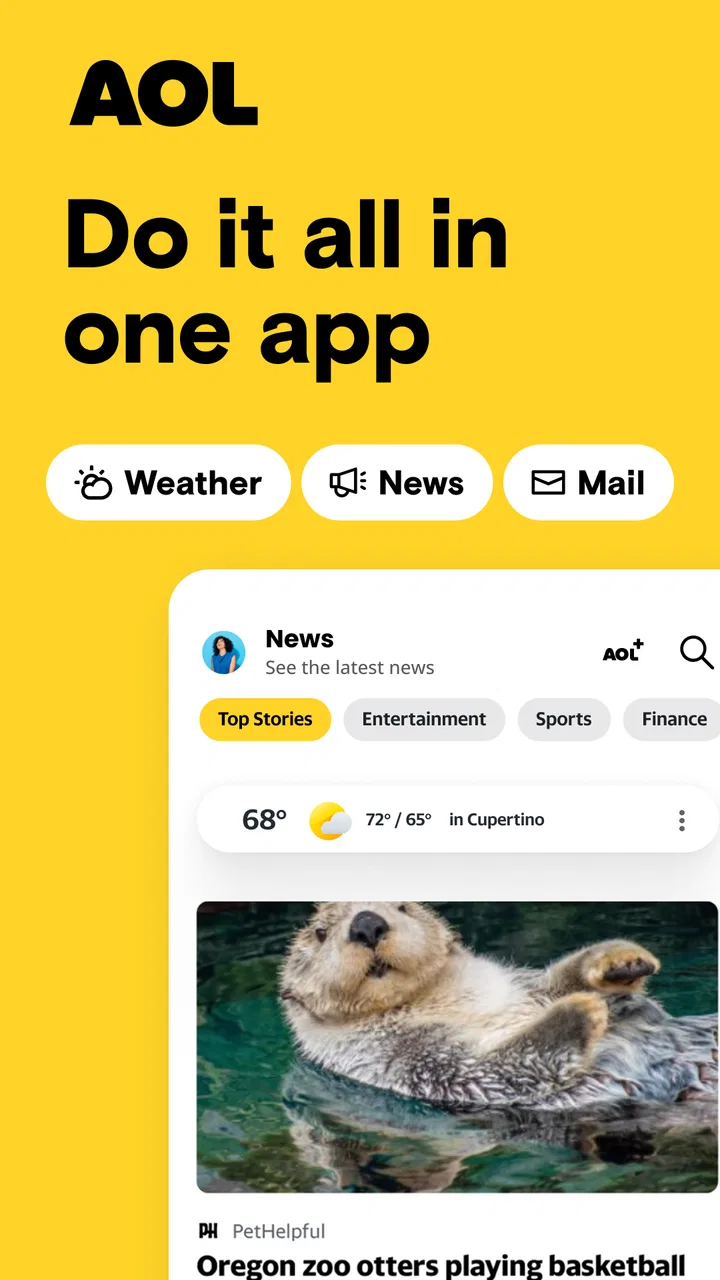
The first thing to understand is that this is not simply an email inbox with a few decorative extras. The experience is built around quick access to three kinds of information: messages, current conditions, and news. I found that combination most useful during short gaps in the day, such as checking my inbox while deciding whether I needed an umbrella or scanning headlines before starting work.
You May Also Like

 Blood Strike: 2.5 Anniversary
Blood Strike’s Loadouts Turn Every Drop Into a Tactical Gamble
A close look at Blood Strike’s custom loadouts: how fast access to signature weapons reshapes its battle royale rhythm, rewards preparation, and narrows the gap between fights.

 Pandora - Music & Podcasts
Pandora’s Music Is Easy to Start, but Harder to Recover
Pandora’s strength is its low-effort path from a seed to a station. Its weak spot is how much confidence it asks you to place in connection, setup, and quiet recovery.

 8 Ball Pool
 Is Built on Rivalries, Rematches, and Routine
A close look at the rivalries, rematches, shared routines, and unanswered safety questions that turn a quick pool match into a persistent mobile community.

 Samsung Music
’s Quiet Strength Is Playing What You Already Own
Its reach comes less from spectacle than from dependable access to a personal library. That simplicity is both the app’s strongest retention engine and its ceiling.

 AccuWeather: Weather Radar
AccuWeather Review: A Quick, Clear Forecast for Everyday Decisions
For everyday plans, the best forecast is the one you can understand quickly. AccuWeather makes rain timing, radar, and local conditions easy to act on, with a few trade-offs.

 Hill Climb Racing
Why Hill Climb Racing Still Turns Crashes Into One More Run
A tiny car, a bumpy hill and one more upgrade: Hill Climb Racing keeps resurfacing because its simple chaos makes every near-miss feel personal.
More From Our News Desk
View All News


That arrangement changes how I use it compared with a dedicated email client. In a specialist mail app, my attention is usually directed toward sorting, searching, replying, and managing messages. Here, the surrounding information can make the app feel more like a daily information dashboard. That is helpful when I want a quick overview, but it can feel less focused when I have a large inbox task to complete.
The same trade-off applies to the news side. I appreciate having headlines close to my email because it reduces the number of separate stops in my routine. However, anyone who wants a deeply customizable news reader, highly specialized weather tools, or a very streamlined mail workspace may prefer separate apps designed around those individual jobs.
My advice for a first-time user is to judge the app by the amount of switching it removes from your day. If your normal routine is “check messages, glance at headlines, then check the forecast,” the combined format makes sense. If you already have excellent dedicated tools and rarely want those areas together, the extra breadth may not feel like an advantage.
Why the all-in-one layout can be useful
A realistic example is a busy morning. I can open the app to see whether anything important arrived, get a quick sense of the day’s weather, and browse current stories before leaving home. I do not need to treat each task as a separate session. That small reduction in friction is the app’s most convincing benefit.
I also see value for people who want a familiar starting point without building a complicated collection of services. A new smartphone user, a family member who prefers fewer icons, or someone returning to an AOL account may find the single-app approach easier to remember. The free price also lowers the barrier to trying it, although in-app purchases range from $1.99 to $99.99 per item, so I would still pay attention to any purchase prompt rather than assuming every part of the experience is included without conditions.
At the same time, I would not recommend it automatically to someone who treats email as a serious filing system. If you manage many projects, need elaborate labels, or depend on a highly optimized professional inbox, a dedicated email application is likely to offer a more focused workflow. The AOL app is better understood as a convenient hub than as an advanced command center.
Setting it up without making the first session confusing
My preferred first step is to install the app and begin with the email purpose that brought me there. I would avoid trying to explore every area immediately. First, I would make sure I can reach the inbox and recognize the basic path for opening a message, returning to the main view, and moving between email, news, and weather.
This order matters because a combined app can seem busier than a single-purpose alternative. Starting with one clear task gives the interface a practical context. Once I know where my messages are, the other sections become useful additions instead of distractions competing for attention.
During setup, I would also decide what I actually want to check every day. If weather is important to my commute, I would make that part of my routine. If headlines are only an occasional interest, I would treat them as something to browse when I have time rather than allowing them to dominate the first screen. The best experience comes from using the app as a shortcut to my own habits, not from attempting to consume everything it presents.
One helpful approach is to establish a simple sequence: email first, weather second, news last. Email usually contains information that may require action, while weather can influence immediate plans and news is easier to postpone. This order keeps the app from turning a quick check into an unplanned browsing session.
What I would do immediately after installation
I would begin by opening the mail area and identifying one message that matters. I would read it fully, return to the main view, and then look at the weather information for the day. Finally, I would scan the available headlines without trying to read every story. This gives me a clear sense of how the three parts fit together in one short visit.
If I were helping someone else set it up, I would explain that the app is not asking them to change their entire digital routine. It simply places familiar daily checks closer together. That reassurance is important for first-time users who may otherwise assume they need to configure every option before the app becomes useful.
I would also keep expectations realistic around account use. The app is most valuable when email is already part of the person’s routine. Someone looking only for a weather forecast will probably find a dedicated weather app quicker, while someone interested only in headlines may prefer a news reader. The combined design earns its place when all three categories matter at least occasionally.
The first meaningful success: completing a small morning check
For me, the first successful action is not merely opening the app. It is completing a useful three-part check without getting lost: review an important email, check the forecast, and leave with a basic understanding of the day’s headlines. That is a modest goal, but it demonstrates the reason to keep the app installed.
Imagine receiving a message about a meeting while preparing to leave. I can read the message, check the weather before choosing what to wear, and glance at current news while drinking coffee. The app does not need to become the center of my day to be helpful. It only needs to make that short routine smoother.
A less obvious benefit is the mental connection between the information types. Email tells me what other people or services need from me. Weather tells me what the outside conditions may require. News gives me wider context. Keeping those checks together can help me make a quick plan instead of handling them as unrelated tasks.
There is also a useful discipline in limiting the first visit. I would not open every headline, browse aimlessly, and then wonder why the app took too much time. I would use it as a triage tool: identify anything urgent, learn what conditions to expect, and decide whether a news story deserves a longer read later.
If email is the main reason I installed it, I would measure success by whether I can return to the inbox quickly after checking the other areas. If I keep losing my place or drifting into unrelated browsing, that tells me the all-in-one design may not match the way I work. The app should reduce friction, not create a new form of it.
A workflow that works better than random browsing
I found a simple three-pass routine more effective than opening sections in whatever order catches my eye. First, I look for messages that need a response or follow-up. Second, I check weather because it affects immediate plans. Third, I browse news only for as long as I have available. This approach keeps the productivity purpose intact while still making room for the app’s broader information features.
For a commuter, the order can be adjusted. Weather may come first if travel conditions are the urgent concern. For someone working from home, email may deserve priority while weather and news become short breaks. The important insight is that the app supports a routine best when I decide the order in advance instead of letting the most visually prominent item decide for me.
I would also use the app at natural transition points rather than checking it constantly. A morning check, a midday message review, and an evening glance at tomorrow’s conditions are more intentional than repeatedly opening it whenever I feel bored. This makes the combined format useful without allowing it to become a source of unnecessary interruption.
Common points of confusion and the trade-offs behind them
The most likely confusion is assuming that one app means one perfectly unified workspace. In practice, email, news, and weather serve different purposes, so they do not necessarily feel identical. I had to think of the app as a collection of connected destinations rather than one deeply integrated tool where every item behaves the same way.
Another point is focus. News can be engaging, but it is not always productive. If I open the app to answer a message and then spend much longer reading headlines, the problem is not that the app is unusable; it is that the combined design makes distraction easier. I would enter with a specific job and leave once that job is complete.
The weather area should also be treated as a quick planning reference rather than the only source I would use for a serious decision. For ordinary choices such as clothing, commuting, or deciding whether to carry rain protection, a convenient glance is valuable. For travel, outdoor work, or changing conditions, I would want to verify details through a more specialized weather service.
Likewise, the news section is useful for awareness, but it should not be confused with a research workflow. A headline can tell me what deserves attention; it does not replace reading the full reporting or checking context when the subject matters. This distinction is especially important for users who may mistake convenience for completeness.
The presence of optional purchases is another reason to stay attentive during use. The app itself is free, but individual in-app purchases can cost from $1.99 up to $99.99. I would review prompts carefully and avoid tapping through quickly, particularly if I were setting it up on a shared family device or helping a less experienced user.
When a separate app is the better choice
I would choose a dedicated email client over this app when message organization is my central concern. A specialist tool is usually the better fit for intensive inbox maintenance, complex work communication, or a workflow built around email for most of the day. The AOL app is more appealing when I want email available alongside quick information checks.
I would choose a dedicated weather application when forecasts are central to my work, travel, exercise, or safety decisions. The convenience of seeing weather near the inbox is excellent for ordinary planning, but specialization matters when I need more depth than a quick daily check.
I would choose a dedicated news reader when I want to follow specific subjects closely, build a carefully controlled reading list, or separate news consumption from communication. The AOL approach is better for casual awareness and quick scanning. Neither approach is universally superior; the right choice depends on whether breadth or depth matters more to me.
Privacy expectations and account habits can also influence the decision, but I would avoid choosing any combined service solely because it has many sections. The real question is whether the convenience of one destination outweighs the control and focus I might gain from separate applications. For some people it will. For others, keeping email, news, and weather apart will feel cleaner.
Practical habits that make the app more useful
My first tip is to make email the anchor. I would open the app with a clear inbox goal, such as checking for a reply or confirming a time, before browsing anything else. This preserves the productivity value and prevents the news area from setting the agenda.
My second tip is to use weather as a planning trigger. Instead of checking it passively, I would connect it to a decision: whether to leave earlier, carry an extra layer, or change an outdoor plan. That turns a glance into a useful action and makes the combined design feel intentional.
My third tip is to treat headlines as a shortlist, not a complete information diet. I would scan for subjects worth returning to and stop there when time is limited. This is particularly helpful on work mornings, when the app can provide awareness without consuming the time reserved for messages and tasks.
A fourth practical idea is to create two different habits for two different contexts. During a rushed morning, I would use only email and weather. During a quieter break, I would allow myself to browse news. Separating those modes reduces the chance that a quick productivity check turns into an accidental long session.
I would also introduce the app gradually to another person. Rather than explaining every area at once, I would show the path to the inbox, demonstrate the weather check, and leave news exploration for later. This makes the first meaningful success easier and avoids the impression that the app requires a complicated learning period.
Who will get the most from it
This app is a strong match for someone who wants a familiar, free starting point for daily information and already values AOL’s email environment. It also suits people who prefer fewer separate apps and like the idea of checking communication, conditions, and headlines in one place.
It may work well for casual email users, busy households, and people who want a simple morning dashboard rather than a highly specialized productivity system. The age rating of Everyone 10+ also makes it broadly approachable, although I would still supervise purchase decisions on devices used by younger family members.
I would be more cautious about recommending it to professionals who live in their inbox, weather-dependent workers, dedicated news readers, or anyone who strongly prefers minimal interfaces. Those users may appreciate one part of the app but still find that separate tools give them better control.
My next step after the first week
After the first few uses, I would ask one practical question: does this app shorten my daily information routine? If I can check important email, understand the weather, and get a useful headline overview with less switching, then it has earned a place on my phone. If I still open separate apps for every task, its central advantage becomes less meaningful.
I would also pay attention to how often news interrupts my original purpose. If that becomes a problem, I would return to the three-pass routine and keep the news check for a deliberate break. The app works best when I control the sequence instead of allowing the combined layout to control my attention.
My overall view is positive but specific. AOL Media LLC has created a practical productivity app for people who value convenience across ordinary daily checks. It is not the deepest email manager, the most specialized weather instrument, or the most focused news reader. Its value comes from putting those needs close together and making the first useful session easy to understand.
I would recommend trying it if you want a free, approachable hub and your routine genuinely includes all three areas. I would skip it if you are searching for advanced control in one category or already have separate tools that work perfectly. For the right user, the strongest reason to keep AOL: Email News Weather installed is the time saved by having a dependable daily starting point, not the promise of replacing every specialized app.
FAQs for AOL: Email News Weather
01What is AOL: Email News Weather, and what can I use it for?
AOL: Email News Weather combines several everyday services in one mobile application. You can access your AOL Mail inbox, read news stories, check weather conditions and forecasts, and manage basic account settings from your phone. It is especially useful if you already use an AOL email address and prefer having mail, headlines, and local weather available without switching between separate apps.
02Is AOL: Email News Weather free to download and use?
The application is generally free to download and provides its main email, news, and weather features without requiring a subscription. However, users may see advertising while browsing content, and certain services or links may lead to external AOL or partner experiences with their own terms. You should also consider mobile data usage, particularly when loading news images, videos, or frequent weather updates.
03Can I use the app with an existing AOL Mail account?
Yes, the app is designed to work with existing AOL Mail accounts. After installation, you can sign in using your AOL username and password, then view messages, send and reply to emails, organize your inbox, and manage common mail functions. If you use additional security verification, you may need to complete the sign-in process before accessing your mailbox on a new device.
04Does AOL: Email News Weather provide reliable news and local forecasts?
The app offers access to a selection of news topics and weather information, with content and forecast details typically tailored to your location or chosen places. As with any news aggregator, coverage, headlines, and sources can change over time, so it is wise to open the original article for more context. Weather forecasts are helpful for planning, but conditions can change and should not replace official alerts.
05What permissions and privacy considerations should I know about before installing it?
The app may request permissions or account access needed for features such as displaying local weather, sending notifications, and connecting to your AOL mailbox. You can review and adjust many permissions through your device settings, although restricting location or notifications may reduce convenience. Before signing in, review AOL’s current privacy policy and use a strong, unique password, especially if your email contains personal or sensitive information.
Pros
- Unified inbox for managing multiple email accounts in one place.
- Built-in weather forecasts are convenient for quick daily checks.
- News coverage is broad and easy to browse by topic.
- Customizable alerts help you stay informed about important updates.
- Clean layout makes switching between mail
- news
- and weather simple.
Cons
- Some features and content may vary depending on your region.
- News recommendations can sometimes feel repetitive or broad.
- Weather details may be less comprehensive than dedicated weather apps.
- The app may use noticeable battery and data when alerts are enabled.
- Promotional content can appear alongside news and email features.

AOL: Email News Weather
Gallery